learn
/
methodology
How to connect ChatGPT or Claude to Google Ads, for free
Connect ChatGPT or Claude to Google Ads in about 10 minutes with Windsor.ai or Zernio, no developer token needed. Step by step, with a test prompt.
By Gabriele Franco, co-founder of Cassandra


Get one practical idea every week to grow with the same team
To connect ChatGPT or Claude to Google Ads, link your Google Ads account to Windsor.ai at onboard.windsor.ai, then install the Windsor.ai connector in ChatGPT or Claude. You don't need a developer token, it's free for 30 days and then for one account, and a login with Read-only access keeps the AI from changing anything.
Most Google Ads questions come down to "where is the money going?". Once Google Ads is connected, you can ask ChatGPT or Claude "which search terms cost money and never converted?" and get the answer from the live account. No developer token, no code, about 10 minutes.
You need a connector between the AI and Google Ads. We use Windsor.ai because it works in both ChatGPT and Claude and you can start for free. Zernio is a second free option if you only use Claude.
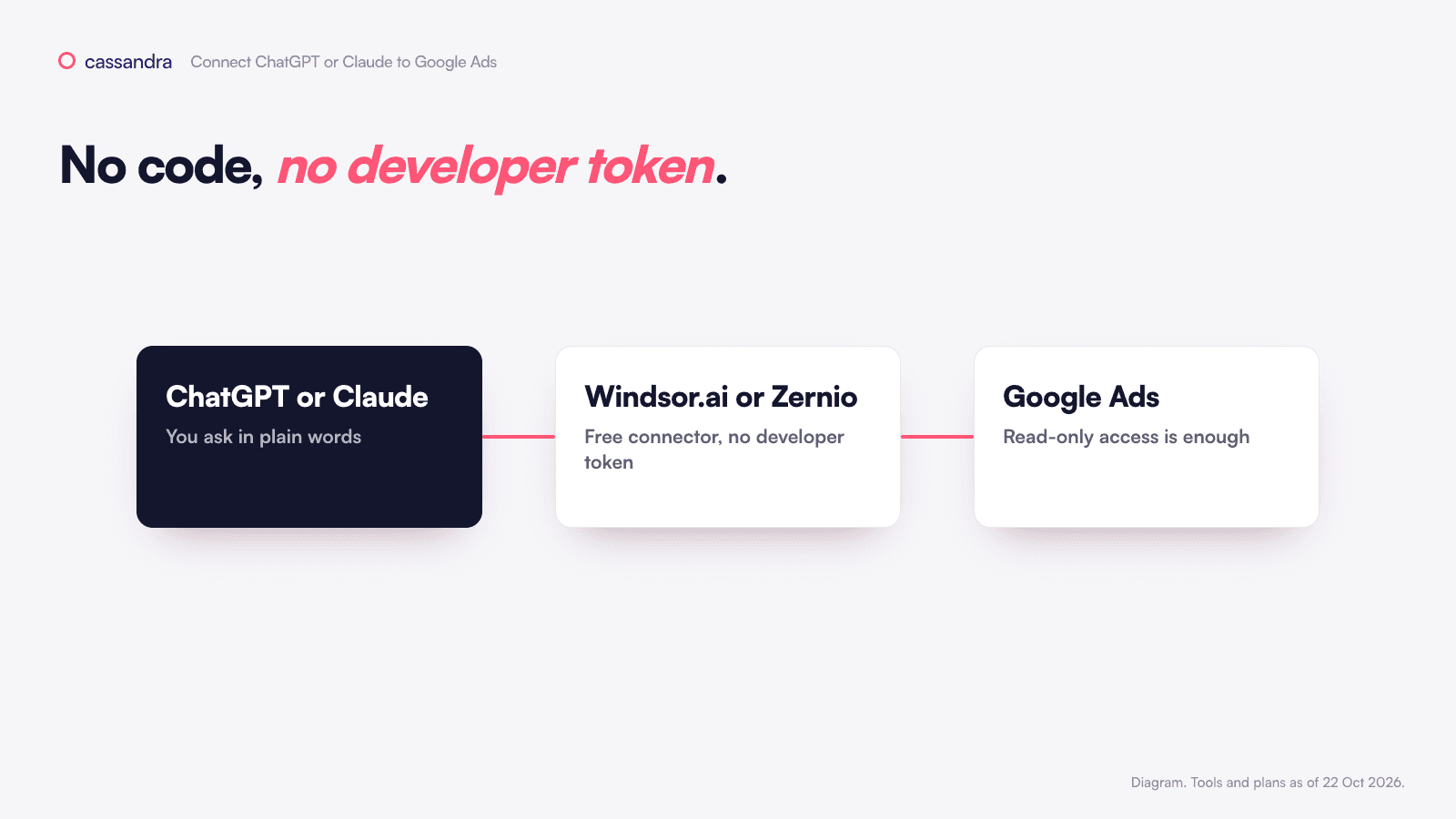
What do you need to connect ChatGPT to Google Ads?
A ChatGPT or Claude account.
A Google login that can see the Google Ads account. Read-only access is enough, and safer (more on that below).
A Windsor.ai account. You create it in step 2, no card needed.
Is Windsor.ai free?
Windsor's free trial lasts 30 days and covers up to 10 sources. After that, the free plan keeps one source and one account, and only reads the last 30 days. If you already connected Meta Ads with our Meta guide, add Google Ads as a second source during the trial. Zernio is free for two connected accounts, and its ad tools work in Claude but not in ChatGPT.
How to connect ChatGPT or Claude to Google Ads, step by step
1. Open Windsor
Go to onboard.windsor.ai, type Google Ads in Type platform name and click it.
2. Give Windsor access
Click Grant Google Ads Access, choose your Google account and tick the Google Ads permission (or Select all) on Google's screen. Click Continue.
3. Pick the account
Tick the Google Ads account you want and click Next >. If you work from a manager account, tick the client account, not the manager.
4. Pick ChatGPT or Claude, turn off Write actions, install
On 2. Preview and Destination, scroll to Data Destinations, click the AI filter and choose ChatGPT or Claude. On the card that opens, switch Write actions off so the AI can read your campaigns but not change them. Then click Install Windsor.ai connector.
In ChatGPT, the button opens the Windsor.ai app: click Connect, Allow Access, then Start chat.
In Claude, it opens the Windsor connector: click Add and sign in with Windsor. On Team and Enterprise plans an Owner has to add it first, then you click Connect.
5. Use it in a chat
In ChatGPT, start your message with @Windsor. ChatGPT only uses it for that one message.
In Claude, click + > Connectors and switch Windsor.ai on for the chat.
How do you check the connection works?
Paste this:
You should get 10 search terms with campaign, spend and clicks. To double-check, open Insights and reports > Search terms in Google Ads, set the same 30 days and sort by cost. The top rows should be the same.
Can ChatGPT or Claude change your Google Ads campaigns?
All of these can read campaigns, search terms, spend and conversions. Windsor and Zernio can also make changes.
Tool | What it can change in Google Ads | How to make it read-only |
|---|---|---|
Windsor.ai | 34 actions, including: pause or turn on campaigns, ad groups and ads, change budgets, bidding strategy, max CPC, target CPA and target ROAS, add or remove keywords and negatives, create campaigns, ad groups and responsive search ads (they start paused), change targeting. | Switch Write actions off on the ChatGPT or Claude card. New accounts have it on by default. |
Zernio | Pause, resume and change budgets. | Its Claude connection always has full access for now. For read-only you need an API key with read permission (works in Claude Code), or a Zernio user with the Viewer role. |
Nothing, it's read-only. | Already read-only, but you need a Google Cloud project to run it, so it's more for technical teams. |
You can also limit things inside ChatGPT and Claude.
In ChatGPT, go to Settings > Plugins > Permissions (some accounts still say Apps) and pick Always ask or Allow read actions. ChatGPT shows a card before any change. Read what it's about to do, then click Allow once or Deny. On Business and Enterprise, admins can switch off Write actions for the whole workspace.
In Claude, go to Customize > Connectors, click Windsor.ai and open Tool permissions. Set the tools that change things to Blocked if you only want reports, or to Needs approval if you want to approve each change with Allow once. Don't use Always allow on those.
In Claude Code, you're asked before each tool runs. To block Windsor's change tool completely, put this in .claude/settings.json:
Replace windsor with the name you used in claude mcp add.
How do you stop an AI agent from changing your Google Ads budget?
Don't rely on a single setting. We use all of these together:
Connect with a login that can only look. In Google Ads, open Admin > Access and security and give the person who connects Windsor Read-only access. Connected apps act as that person, so they can read but can't edit campaigns.
Switch off writes in the connector. In Windsor, Write actions off.
Keep approvals on in ChatGPT or Claude, as described above.
Write it in the prompt, for example "read only, don't change budgets, bids, keywords or status". A good reminder, but not something to rely on alone.
Cap and watch spend. New campaigns can have a Campaign total budget, so you're never charged more than that amount. Accounts on monthly invoicing can set Account budgets under Billing. An automated rule of type Send email on a cost condition tells you when spend jumps.
Check and undo. Open Campaigns > Change history and filter by Tool. Changes made through a connector show up as "Google Ads API" or the tool's name, and most changes from the last 30 days can be reversed with Undo.
Can you use Zernio instead of Windsor.ai?
In Claude, click + in the message box, then Connectors > Add connector > Add custom connector.
Name it
Zernio, pastehttps://mcp.zernio.com/mcpas the URL, click Continue, leave the settings as they are, click Add, then Authorize.In the Zernio dashboard, open Connections, click + Connect on the Google Ads card, log in to Google and pick the account.
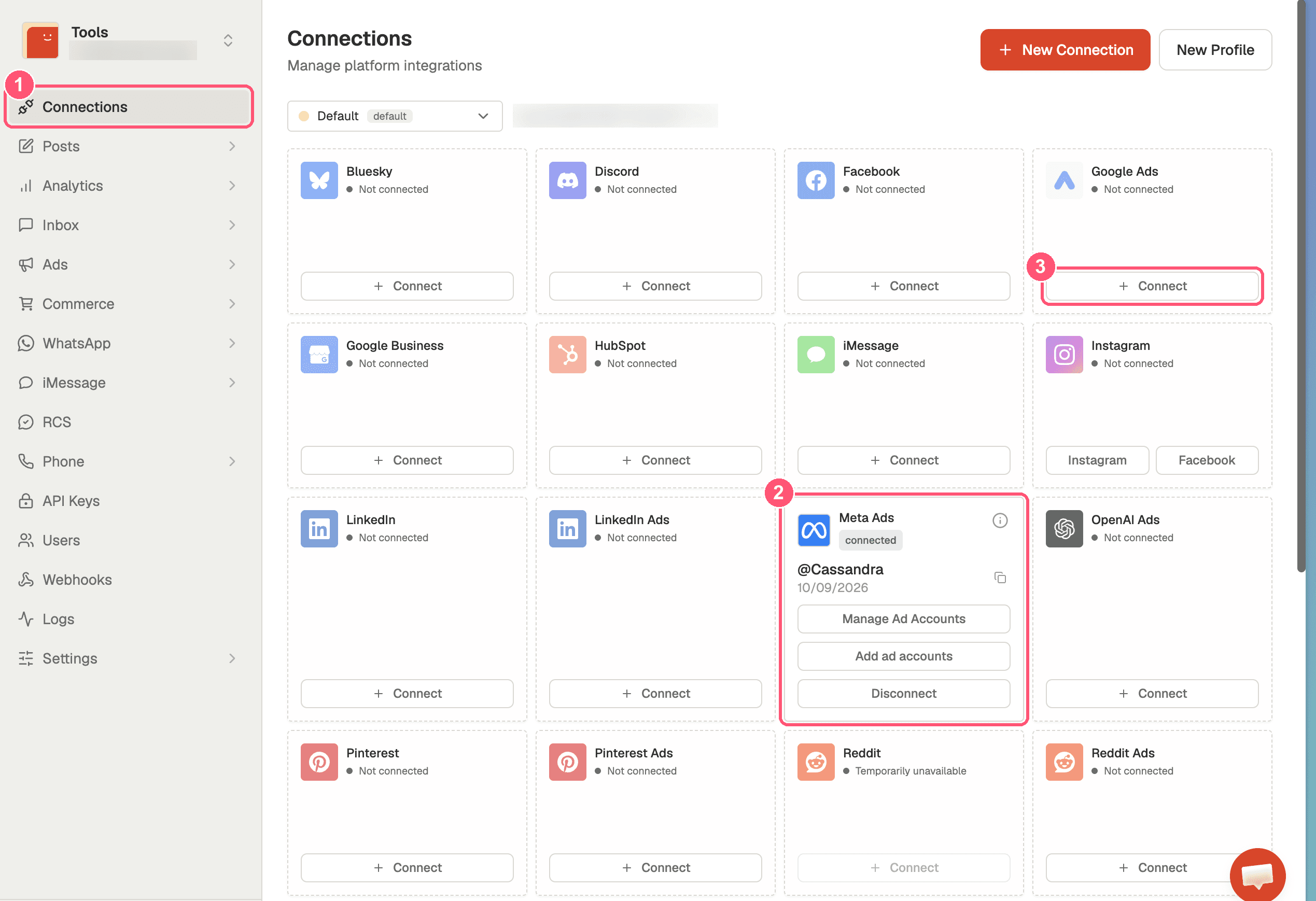
The free Claude plan allows one custom connector. Zernio counts every connected account, so Meta Ads plus Google Ads already uses up its two free ones.
What if ChatGPT or Claude can't see your Google Ads data?
What you see | Why | Fix |
|---|---|---|
"No accounts" after login | That Google login has no access to the Ads account | An admin adds your email under Admin > Access and security, then repeat step 2 |
Manager account shows but no data | You ticked the manager, not the client account | Repeat step 3 and tick the client account |
ChatGPT ignores Windsor | Windsor wasn't picked for this message | Start the message with |
Conversions don't match Google Ads | Different conversion column or dates | Ask for "Conversions" (not "All conv.") and the same dates |
Nothing older than 30 days | Free plan limit | Keep questions within 30 days, or upgrade |
Marketing decisions should not rely on one data source
Google Ads only tells you what Google Ads saw. Before you cut a keyword or move budget, you'd also want to know what customers search for and say in reviews, which products sell and at what margin, what your analytics shows, how the other channels moved and what past tests proved. Connect Meta Ads and Google Analytics 4 too, and ask the AI what else it would need before it suggests a change. More on this in what is a marketing brain.
That's what we built Cassandra for. It pulls your ad accounts, analytics, sales, products, reviews and incrementality tests into one place, works out what to do next, and makes the changes in your ad accounts within the rules your team sets. You can start for free with your website and data.
Next
Menus and plans checked on 22 October 2026. If a label has changed, look for the closest match.